DiscordSRV Integration
Bridge the gap between your game and your community. Synchronize chat, manage roles, and monitor logs directly from Discord.
1. Why integrate Discord?
Modern Minecraft servers aren't just in-game; they are communities. DiscordSRV is a powerful plugin that connects your Minecraft server to a Discord channel. When someone speaks in Minecraft, it appears in Discord, and vice versa. This keeps your community active even when people aren't logged into the game.
2. Creating your Discord Bot
Before installing the plugin, you need to create a bot on the Discord Developer Portal.
- Create a 'New Application'.
- Go to the 'Bot' tab and click 'Add Bot'.
- CRITICAL: Scroll down to 'Privileged Gateway Intents' and enable Presence Intent, Server Members Intent, and Message Content Intent. Without these, the bot cannot see chat.
- Copy your 'Bot Token'. This is a secret key code, never share it.
3. Installation and Linking
Step 1: Upload Plugin
Upload DiscordSRV.jar to your /plugins folder on Deduck and restart the server.
Step 2: Enter Token
Open /plugins/DiscordSRV/config.yml. Paste your token into the BotToken field.
Step 3: Channel IDs
In Discord, right-click the channel you want to use and 'Copy ID' (requires Developer Mode). Paste this into the Channels section of the config.
4. Advanced Feature: Account Linking
DiscordSRV allows players to link their Minecraft account to their Discord account using the /link command. This allows you to:
- Sync Ranks: Automatically give a "VIP" role on Discord when someone buys a rank in game.
- Voice Proximity: Integrate with specialized voice plugins for immersive gameplay.
- Account Security: Use Discord as a 2FA (Two-Factor Authentication) method for staff members.
5. Monitoring Console via Discord
You can set up a "secret" Discord channel that shows your server's live console. This is incredibly useful for staff to monitor for crashes or player issues while away from their computer. Setup a separate channel ID in the ConsoleChannelId section of the config. Use Discord's built-in permissions to ensure only high-level staff can see this channel.
6. Webhooks for Enhanced Formatting
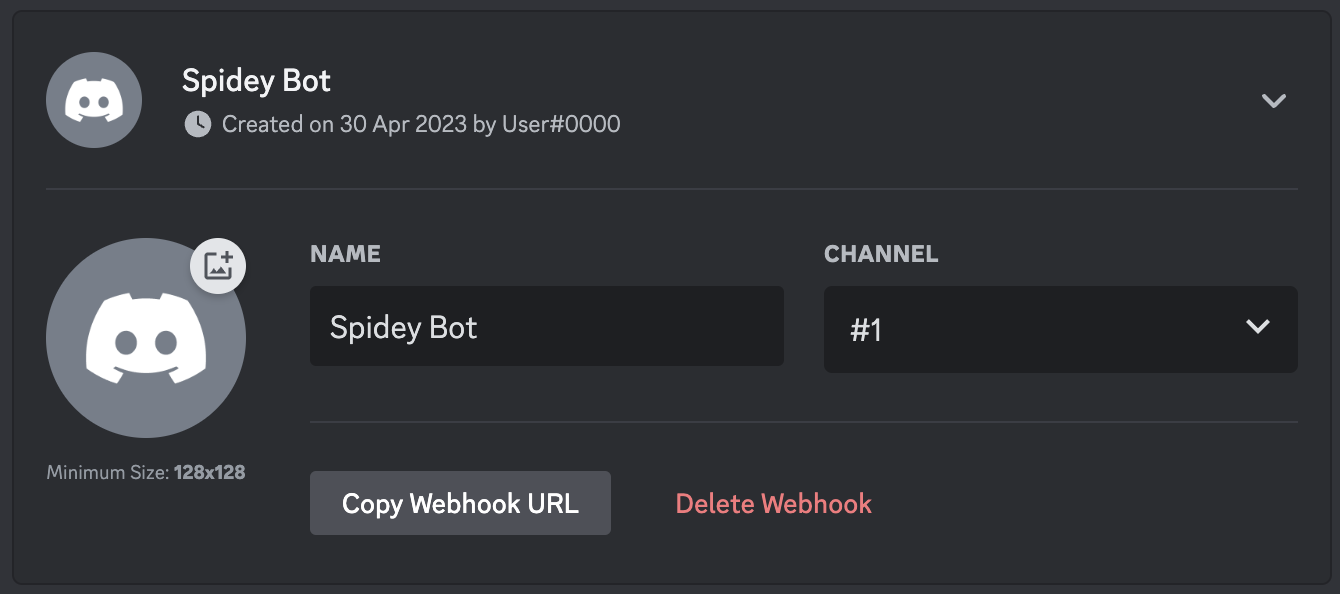
While standard bot messages work, Webhooks allow for richer formatting, including player avatars showing in Discord for every message. To enable this, go to your Discord channel settings, create a Webhook, and paste the URL into the DiscordSRV Webhooks section of the configuration.
7. Synchronization & Addons: Roles and Name Sync
In 2026, the DiscordSRV ecosystem has expanded with several "Addons." One of the most powerful is DiscordSRV-Staff-Chat, which creates a dedicated staff-only channel bridge.
- Role Synchronization: Use the
synchronization.ymlto map Minecraft permissions to Discord roles. If a player earns the "Elite" rank on your Deduck server, they will automatically receive the "@Elite" role on Discord. - Nickname Sync: Ensure your community identity remains consistent. You can configure DiscordSRV to change a user's Discord nickname to match their Minecraft IGN (In-Game Name) whenever they link their account.
- Proximity Voice Integration: DiscordSRV can be used in tandem with plugins like Simple Voice Chat to facilitate deep-immersion roleplay (RP) environments.