
Using the Server Console effectively
The console is the direct line of communication between you and your Minecraft server. Mastering it is the first step toward being a pro server owner.
1. What is the Server Console?
Think of the console as the "behind-the-scenes" feed of everything happening on your Minecraft server. It shows you who connects, what they say, and, most importantly, why things break (errors and logs).
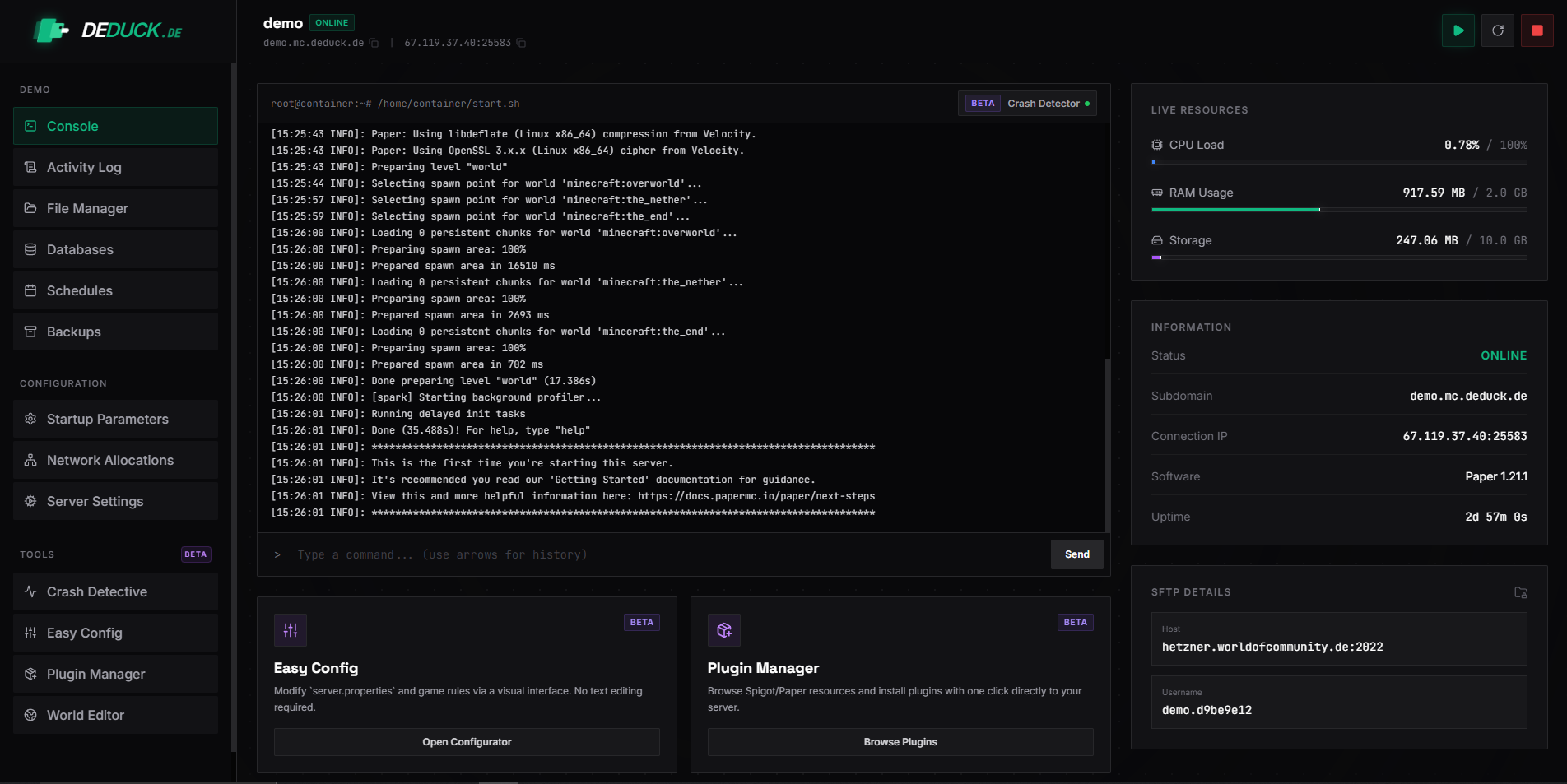
2. Using and Entering Commands
When entering commands in the Web Console, you don't need to use a forward slash (/). If you want to give yourself an item, just type give steve diamond 64 and hit Enter.
Common Console Commands
- op [Player] Give a player full admin permissions.
- whitelist add [Player] Add someone to your private server.
- kick [Player] [Reason] Instantly remove someone from the game.
- ban [Player] [Reason] Permanently block a player.
3. Reading Error Logs
If your server crashes, the console will show a "Stack Trace" or error report. While these look intimidating, you can often find the cause by looking for words like Caused by: [PluginName].
Expert Tip: If the console is moving too fast for you to read, use the "Scroll Lock" button or check the latest.log file in your File Manager. This file contains a permanent record of everything that appeared in the console since the last restart.
4. Power Controls
- Start: Initiates the boot-up sequence. The console will show the progression until you see "Done!".
- Stop: Sends a signal to the server to save all player data and world chunks safely to the disk. Always use this instead of "Kill".
- Kill: Force-stops the server. Only use this if the server is completely frozen and not responding to the "Stop" command, as it can occasionally cause world corruption.
5. Performance and Log Rotation
A busy Minecraft server can generate gigabytes of log data per week. In 2026, Deduck uses an automated Log Rotation System. Every night at 00:00, your latest.log is compressed into a .gz file and moved to the logs/ directory.
- Terminal Silencing: If a plugin is "spamming" the console, use a console filter plugin like ConsoleFilter or Paper's log-filters setting to hide specific messages based on Regex patterns.
- History Retention: By default, we keep 7 days of logs. If you need longer retention for legal or community audit reasons, you should download your logs weekly or use a remote logging service like Logit.io.
6. Terminal Security
Never share access to your Web Console with people you don't fully trust. Anyone with console access can execute themselves as an OP, delete your files, and read any private information sent in the game chat.
"The console is your server's steering wheel. Drive carefully."