
Connecting to your Server
This guide explains how to find your server address and connect using the Minecraft client.
1. Locate your Connection Details
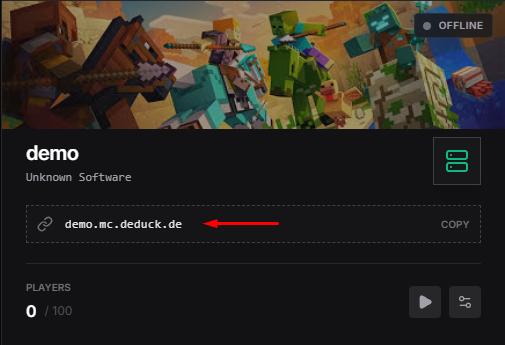
To connect to your server, you first need its unique address. You can find this on the Deduck Dashboard. On the main server overview, look for the 'Connection' card. It will typically show both a numeric IP (e.g., 123.45.67.89:25565) and a specialized subdomain (e.g., coolserver.deduck.de).
2. Understanding Minecraft Protocols
Minecraft uses the Transmission Control Protocol (TCP) for reliable communication between the client and the server. When you enter an address in the "Direct Connection" or "Add Server" menu, your computer initiates a three-way handshake with our infrastructure.
- Java Edition: Primarily uses TCP port 25565. This version requires a stable, low-jitter connection for the best experience.
- Bedrock Edition: Uses the User Datagram Protocol (UDP) typically on port 19132. UDP is "connectionless," which is faster for gaming but can be more sensitive to packet loss.
3. The Power of SRV Records (DNS)
When you use a subdomain like mc.example.com, your client doesn't just look for an 'A' record (which translates names to IPs). It specifically looks for an SRV (Service) record. This record tells the client exactly which port the Minecraft service is running on. This is why you often don't need to type :25565 at the end of a domain name. At Deduck, we handle all the DNS heavy lifting for you automatically.
4. Step-by-Step Connection Guide
Step 1: Open Minecraft
Launch the game version that matches your server configuration. If the server is 1.25.1, use 1.25.1.
Step 2: Multiplayer Menu
Click on 'Multiplayer' and then 'Add Server'.
Step 3: Enter Address
Paste your Deduck subdomain into the 'Server Address' field and hit 'Done'.
5. Technical Troubleshooting (Deep Dive)
If you encounter the dreaded "Failed to connect to the server" or "Connection Timed Out" error, follow these technical diagnostic steps:
A. The Ping Test
Open your command prompt (Windows) or terminal (Mac/Linux) and type ping [your-server-address]. If you get "Request timed out," it means either the server is offline, or a firewall is blocking ICMP packets. Note: High latency (over 150ms) will result in noticeable "lag" during gameplay.
B. Check Port Availability
Minecraft servers must have their ports open. You can verify if our infrastructure is reachable by using a tool like telnet. Run telnet 123.45.67.89 25565. If the screen clears, the connection is successful at the network layer.
C. Common Error Decoders
| Error Message | Internal Cause | Solution |
|---|---|---|
| Connection Refused | Server process not running or port mismatch. | Restart server in dashboard. |
| Invalid Session | Client/Mojang authentication failure. | Restart your Game Launcher. |
| Unknown Host | DNS resolution failure. | Use numeric IP as fallback. |
6. Network Latency & Routing
Connection quality isn't just about speed; it's about pathing. Data travels through various "hops" across the internet. If one of those hops is congested, you'll experience lag. We use premium Tier-1 bandwidth providers to ensure that your data takes the shortest path between our data center and your ISP. If you experience persistent lag, we recommend using a traceroute command to identify where the bottle-neck is occurring.